GLOBAL GUIDE · CHECKED SEPTEMBER 2026
Laptop Gaming Setup: Docking a Gaming Laptop Without Losing Frames
The short answer: A laptop gaming setup lives or dies on four checks: whether the USB-C port carries video at all, whether the dock can supply the power the laptop draws, whether the external display is wired to the discrete GPU, and whether the panel matches what the laptop can feed. The port is the check people skip.
Every guide to a laptop gaming setup tells you to buy a dock. Almost none of them mention what that port may not do. It may not carry video, may not carry enough power, and may route your external monitor through the wrong graphics chip entirely.
Those three failures look identical from the outside: you plug in and something is wrong. A blank screen, a laptop draining while plugged in, or a frame rate that collapses the moment the external monitor is connected. All three are decided before you buy anything, by what is inside the laptop rather than what is inside the dock.
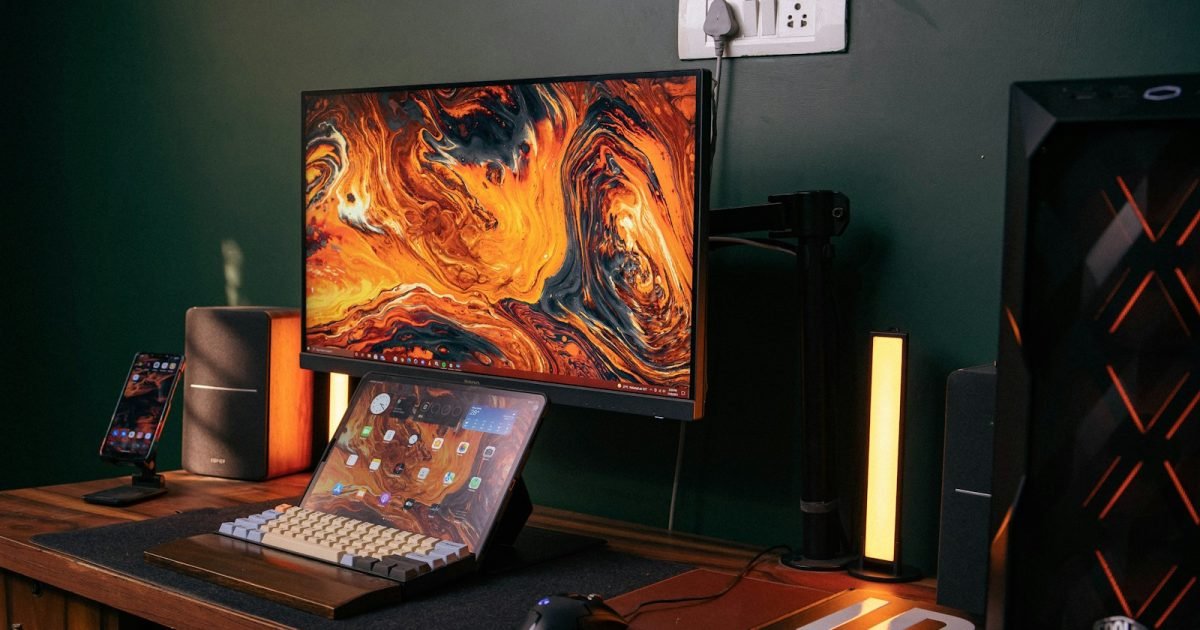
What a laptop gaming setup needs to work properly
Four checks before buying a dock or a monitor. Does the USB-C port support DisplayPort Alt Mode, so it carries video? What wattage does the laptop draw under load, against what the dock supplies? Is the external output wired to the discrete GPU or the integrated one? And can the laptop actually feed the panel you want?
Not every USB-C port carries video
Picture two taps on the same wall, identical in every visible way. One is plumbed. The other was fitted for the look of the thing and connects to nothing. You cannot tell them apart until you turn one on.
USB-C ports work like this. The connector is a shape, not a promise. Video over that connector requires DisplayPort Alt Mode, which is an optional capability the manufacturer either wired in or did not, and the port looks exactly the same either way. Plenty of laptops have three USB-C ports where only one carries video, and none of them are labelled on the chassis.
VESA's DisplayPort Alt Mode specification provides up to 80 Gbps of video across all four high-speed lanes, or 40 Gbps when USB data shares the cable at the same time.
That halving is worth understanding, because a dock is by definition sharing the cable. Video, keyboard, mouse, network and storage all travel the same route, and the bandwidth available to the display is the lower figure, not the headline one. Worth naming the limitation clearly: these are specification ceilings, and what any individual laptop or dock implements is usually well below them.
So the first thing to check in a laptop gaming setup is not which dock to buy but whether the port is plumbed. The laptop's specification sheet will say DisplayPort Alt Mode, DP Alt Mode, or Thunderbolt, which includes it. If it says none of those, that port carries data only and no dock will change it.
Why one cable usually cannot power a gaming laptop
Here is where the single-cable dream tends to end.
USB Power Delivery tops out at 240 watts under the PD 3.1 revision, which raised the ceiling from the older 100 watt limit. That sounds generous until you compare it with what gaming laptops actually draw, which is frequently 200 watts or more once the CPU and GPU are both working.
Two things follow. First, the 240 watt figure is the specification maximum, not what your dock does. Most docks deliver between 60 and 100 watts, which is enough for a thin-and-light and nowhere near enough for a gaming machine under load. Second, even a dock that hits the ceiling is supplying the whole system, so a laptop drawing near its limit will slowly discharge while plugged in.
The practical answer is unglamorous. In a laptop gaming setup, keep the barrel charger for gaming and use the dock for everything else. A dock that carries video, peripherals and network while the original power brick handles power is a perfectly good setup; a dock trying to do all four is where the disappointment lives.
Expect $60 to $150 for a dock with genuine DisplayPort Alt Mode support and enough downstream ports to be worth the desk space `AFFILIATE SLOT: USB-C docking station`. Those are planning bands compiled in September 2026, and SetupFind publishes how these figures are checked.
The routing question that decides your frame rate
This is the deciding factor, and it is invisible until it costs you.
Most gaming laptops contain two graphics processors: an integrated one built into the CPU, and a discrete one that does the actual gaming. On many designs, the internal display is wired to the discrete GPU while the external outputs run through the integrated one. Connect a monitor and your frames now travel through the weaker chip before they reach the screen.
The symptom is distinctive. The game runs fine on the laptop's own panel and noticeably worse on the external monitor, at the same settings. People blame the monitor, the cable or the dock. It is none of those.
Two things to check. Whether the laptop has a MUX switch, which lets you route the display straight to the discrete GPU and bypass the integrated one. And whether the port you are using is wired to the discrete GPU, which is often true of the HDMI output and not of the USB-C ports. On a laptop with a MUX switch, enabling it is usually worth several frames per second and costs nothing.
If none of that is available, use the HDMI output rather than the dock for the display and run peripherals through the dock separately. It is less tidy; it is also faster. The same routing logic decides encoding load if you ever add streaming, which what a streaming setup costs covers alongside the upload requirements.
Monitor choice for a laptop gaming setup
Match the panel to what the laptop can drive, not to what looks impressive. A 1080p or 1440p monitor at 120 to 165 Hz suits most gaming laptops. A 4K panel usually means dropping to 60 Hz or turning settings down far enough that the resolution stops being the point.
Valve's Steam hardware survey for August 2026 puts 50.52 per cent of users at 1920×1080 and 21.86 per cent at 2560×1440, with 4K on 4.98 per cent. The mainstream is where the mainstream is for a reason.
| Laptop class | Sensible panel | Refresh target | Verdict |
|---|---|---|---|
| Entry gaming laptop | 24-inch 1080p | 120–144 Hz | Yes |
| Mid gaming laptop | 27-inch 1440p | 144–165 Hz | Yes |
| High-end gaming laptop | 27-inch 1440p high refresh | 165–240 Hz | Yes |
| Any class | 32-inch 4K | 60 Hz | Marginal |
Worth naming the limitation on that survey: it is opt-in and covers Steam users only, and it does not separate laptops from desktops, so read it as a picture of the whole platform rather than of laptop gaming specifically.
Desk layout: laptop open, closed, or on a stand
Three configurations, and they trade heat against ergonomics.
Closed, on the barrel charger, external monitor only. Tidiest and the best use of desk depth. Runs hottest, because a closed laptop vents into a smaller gap. Fine on machines with rear or side exhausts, poor on ones that vent upward through the keyboard.
Open beside the monitor, used as a second screen. Coolest, and useful for chat or a browser. Costs the most desk width, and the laptop's screen sits far below the external one, so it is a glance screen rather than a working one.
On a raised stand, open, external monitor above or beside. Best airflow and the best compromise. A stand costs $25 to $50 `AFFILIATE SLOT: laptop stand`.
Whichever you choose, the external monitor is the screen your neck is committed to. OSHA's guidance on screen height puts the top of the display at or slightly below eye level at 50 to 100 cm (20 to 40 in). A laptop on a desk never achieves that; an external monitor easily can. That guidance addresses office work rather than gaming sessions, so treat it as a minimum.
Depth is the constraint in this layout, because a laptop and a monitor both want the same space: how much desk you actually need covers it, and in a tight room building a gaming setup in a box room deals with the layout. Docking also makes the cable run permanent, so hiding desk cables without drilling is worth doing once rather than repeatedly.
Two takeaways and where to go next
Two things worth carrying away. First, check the port before you buy the dock, because DisplayPort Alt Mode is optional, the connector looks identical either way, and no dock can add a capability the laptop does not have. Second, keep the barrel charger: USB Power Delivery caps at 240 watts and most docks deliver a fraction of that, so a gaming laptop under load will discharge on dock power alone.
The next decision is the panel, and it follows from what the laptop can actually feed rather than from the specification you would like. The gaming setup guide covers monitor choice and the desk questions that come with it.
Straight answers
Can a USB-C dock power a gaming laptop?
Usually not under load. USB Power Delivery caps at 240 watts under PD 3.1, and most docks supply between 60 and 100 watts, while gaming laptops frequently draw 200 watts or more when the CPU and GPU are both working. Keep the original charger for gaming.
Why is my frame rate lower on an external monitor?
Most likely because the external output is wired to the integrated GPU rather than the discrete one. Check whether the laptop has a MUX switch to route the display directly to the discrete GPU, and whether the HDMI port is wired differently from the USB-C ports.
Do all USB-C ports support an external monitor?
No. Video over USB-C requires DisplayPort Alt Mode, which is optional and not visible from the connector. Check the laptop specification for DisplayPort Alt Mode, DP Alt Mode or Thunderbolt; a port without it carries data only.
What monitor suits a gaming laptop?
A 24-inch 1080p panel at 120 to 144 Hz for entry machines, or a 27-inch 1440p panel at 144 to 165 Hz for mid and high-end ones. Valve's August 2026 Steam hardware survey puts 50.52 per cent of users at 1080p and 21.86 per cent at 1440p.
Should a gaming laptop be closed or open when docked?
Open on a raised stand gives the best airflow and the best compromise overall. Closed is tidiest but runs hottest, particularly on laptops that vent upward through the keyboard rather than out of the sides or rear.