GLOBAL GUIDE · CHECKED SEPTEMBER 2026
Streaming Camera Setup: Where to Put Your Webcam, How to Frame It and the Settings That Stop Lag
By Paul Maji · Updated 26 September 2026 · Research-led guide
The short answer: A streaming camera setup looks better from four free or cheap fixes than from a pricier webcam: put the lens at eye level above the monitor you watch, frame head and shoulders for the overlay box, lock exposure and white balance, and add light. A $70–$110 webcam handled that way does more for your picture than a $430 one left on auto. Plug it into USB 3, because on USB 2.0 the Elgato Facecam MK.2 drops to MJPEG.
Every streaming camera guide ranks webcams. Almost none of them tell you where to put the one you buy, or which settings stop your face flaring white when a bright game scene fills the monitor. That gap matters more than the model, because a streaming camera setup is decided by height, framing, locked settings and light, and all four cost little or nothing.
The pages that rank for this are buying lists. They'll tell you a camera shoots 4K; they won't tell you that the 4K frame gets shrunk into a small corner box, where a badly placed $430 webcam still looks badly placed. Neither Twitch nor YouTube publishes facecam guidance either, so the advice here rests on manufacturer specs, OBS documentation and plain geometry.
Four fixes, in the order they pay off. After them come the decisions that follow: 30 or 60 frames per second, mirrorless or webcam, what each price buys, and the OBS settings behind most webcam lag. If the rest of your kit isn't sorted yet, the streaming setup for beginners guide covers what to buy first.
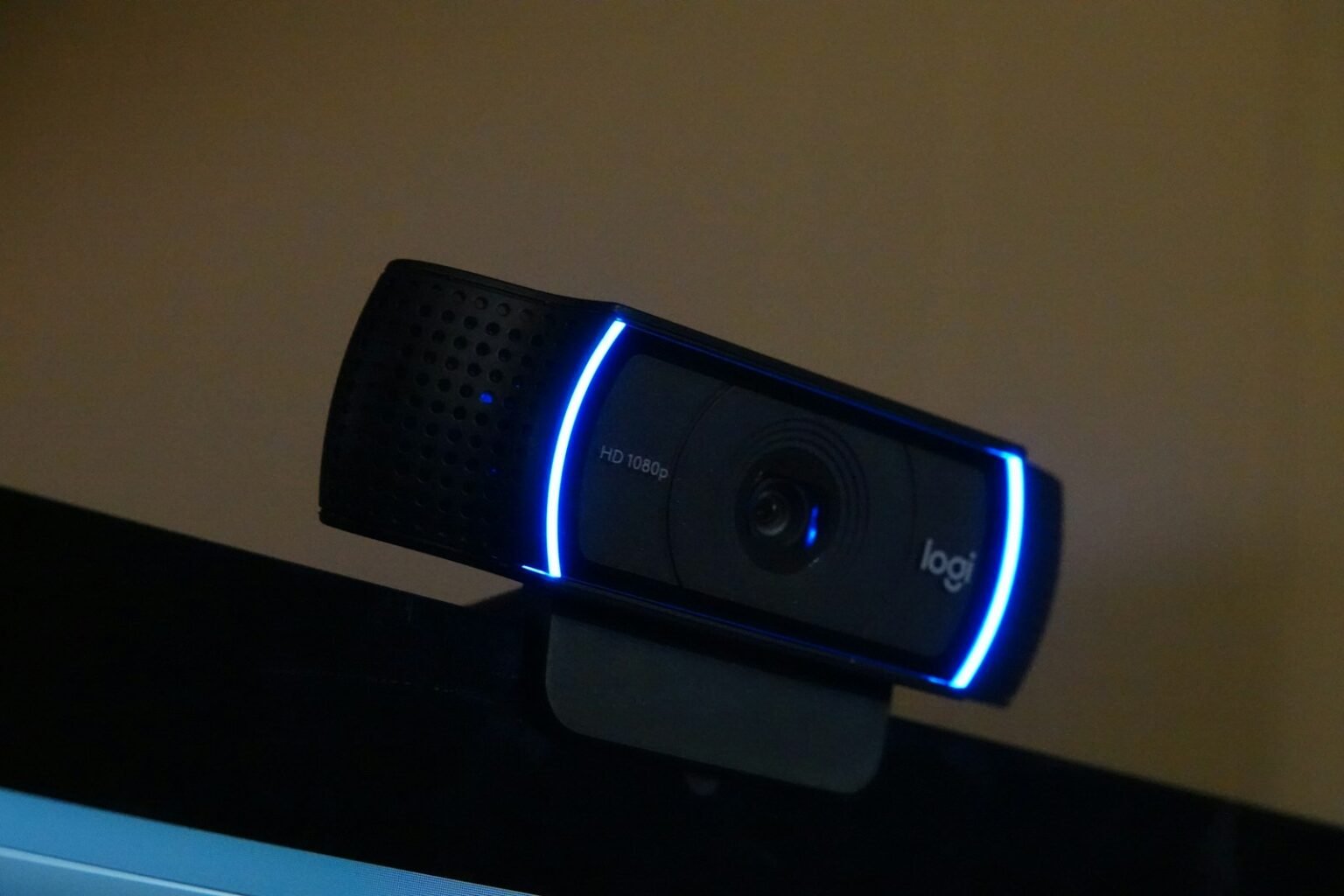
Elgato Facecam MK.2
Why: Uncompressed 1080p60 over USB 3.0 with an 84 degree view, which is the sweet spot for a facecam.
Best for: a streamer who wants smooth 60fps on camera.
$110 to $140 · price checked Sep 2026
Fix 1: where the camera goes in a streaming camera setup
Put the lens at or just above your eye line, centred on the monitor you look at most, roughly 30–120 cm from your face. A camera below eye level films up your nose; one on top of your main screen, level with your eyes, makes you look at the viewer while you're actually looking at the game.
In a dual-monitor streaming camera setup, the camera belongs on whichever screen holds the game or chat for most of the stream. Put it on the side screen and viewers get your profile for three hours.
A webcam on a tripod beside the keyboard looks up at your chin; the same webcam clipped to the top edge of the main monitor looks you in the eye. If that edge sits well above your eyes, lower the monitor rather than tilting the camera down.
Distance counts too. The Elgato Facecam MK.2 has fixed focus between 30 and 120 cm, according to Elgato's Facecam MK.2 technical specifications (checked 26 September 2026), so a camera on a monitor at normal viewing distance lands inside that window. If you need a clamp or monitor arm to get the height right, check how much depth it eats with the desk size guide for monitor arm depth.
Fix 2: frame for the overlay box, not the full camera view
The frame that matters isn't what the camera sees but what fits in the overlay box. Most gameplay layouts give the facecam a small rectangle in a corner, and everything the lens captures outside that rectangle is wasted or, worse, squeezed in.
Think of it as a passport photo. The booth doesn't care about the room behind you; it wants your head and shoulders, centred, with a little space above your hair. Anything more and your face shrinks to fit the same small print.
A facecam box works the same way. A wide lens showing your whole desk leaves you tiny in a tiny box, and viewers lose the expressions they came for.
Those wide angles show a lot of room at arm's length. Crop in OBS with Edit Transform, or hold Alt while dragging a source edge, until your head and shoulders fill the box with your eyes roughly a third of the way down. Cropping a 1080p image for a small corner box costs very little visible detail.
Check the crop against the real overlay, not the camera preview, because alerts and borders often cover the edges.
Fix 3: lock exposure, white balance and focus
Switch exposure, white balance and focus from auto to manual once your lights are set. On auto, a webcam re-meters every time a bright or dark game scene lights your face, so your skin brightens, darkens and shifts colour mid-stream. Locked settings keep your face consistent for the whole broadcast.
Three settings, in this order, for any streaming camera setup.
- White balance first. Set it with your usual lights on, so skin looks natural under them rather than under whatever the monitor is showing.
- Exposure second. Lock it bright enough for your face without clipping the lit side. In the UK, keep the shutter matched to 50 Hz mains to avoid LED banding.
- Focus last. Lock autofocus at your seated position so it doesn't hunt every time you lean back or hold something up.
The Facecam MK.2 saves these settings on the camera itself, set through Elgato's Camera Hub software, according to the B&H product listing for the Facecam MK.2 (checked 26 September 2026), so they survive a move to another PC. Its fixed focus also removes the third step entirely.
The shutter and flicker detail, including why 1/50 matters on UK mains, is covered in the podcast camera setup guide.
Fix 4: add light before you buy a better camera
The cheapest camera upgrade isn't a camera but a light. Webcam sensors are small, and small sensors turn dim rooms into grain and smeared movement whatever the price tag says.
That's what the expensive webcams actually charge for. The Razer Kiyo Pro Ultra uses a 1/1.2-inch Sony STARVIS 2 sensor with 2.9 μm pixels, per its Best Buy listing (checked 26 September 2026), against a 1/2.5-inch sensor in the Facecam MK.2. A bigger sensor gathers more light, and you pay roughly $320 more for it.
Spending $320 on a bigger sensor buys better low-light performance; a light in front of you removes the low light. It also helps every future camera and overpowers the colour a game throws onto your face.
Put one soft key light in front of you, slightly off to one side and a little above eye level, then set exposure. Placement, diffusion and LED flicker are covered in the podcast lighting setup guide.
Is 1080p60 or 1080p30 better for a facecam?
1080p30 is enough for a facecam sitting in a corner of a gameplay stream; 1080p60 earns its extra bandwidth and light only when the camera fills the screen, as in a chatting scene. Your broadcast frame rate and your camera frame rate are separate settings, so a 30fps camera works inside a 60fps stream.
The stream bitrate is set by the whole canvas, not the camera. Twitch's broadcasting guidelines (read 26 September 2026) suggest 6,000 kbps for 1080p60 and 4,500 kbps for 1080p30, and a small corner facecam barely changes what that bitrate has to carry.
Sixty frames has two hidden costs. Each frame gets half the time to gather light, so a 60fps camera needs a brighter room to look as clean as it does at 30. On the Facecam MK.2, uncompressed 1080p60 also needs a USB 3.0 port, according to Elgato's specifications.
The Logitech C920s Pro records 1080p30 only, which is fine for a corner box.
Webcam or mirrorless for a streaming camera setup
A webcam is the right streaming camera for most people; a mirrorless camera only pays off if you already own one or also shoot video. The Sony ZV-E10 II works as a USB webcam with no capture card, but most Canon EOS bodies need Canon's EOS Webcam Utility Pro software.
The B&H listing for the Sony ZV-E10 II says it works as a UVC webcam over USB-C 3.2 Gen 1 and can stream RTMP, RTMPS and SRT itself at up to 4K 25p or 30p. The USB webcam resolution isn't stated, so check it first. It was about $1,200 at B&H on 26 September 2026.
Canon's EOS Webcam Utility compatibility list (checked 26 September 2026) shows only the PowerShot V1 and V10 as native UVC webcams; EOS R and Rebel bodies need EOS Webcam Utility Pro. Heat limits and capture cards are covered in the podcast camera setup guide to heat limits and capture cards.
| Camera | Listed price (US retailer, date) | What the money buys | Verdict for a facecam |
|---|---|---|---|
| Logitech C920s Pro | $69.99, logitech.com, checked 25 Sep 2026 | 1080p30, 78° field of view | Usually |
| Elgato Facecam MK.2 | $109.99 (was $139.99), B&H, 26 Sep 2026 | Uncompressed 1080p60 over USB 3.0, 84°, settings saved on camera | Yes |
| Logitech MX Brio | $199.99, Best Buy, 26 Sep 2026 | 4K30 or 1080p60, 90° diagonal, USB-C | Usually |
| Razer Kiyo Pro Ultra | $429.95, Best Buy, 26 Sep 2026 | 1/1.2-inch sensor, 4K HDR at 30fps | Marginal |
| Sony ZV-E10 II | About $1,200, B&H, 26 Sep 2026 | UVC webcam over USB-C, interchangeable lenses | Marginal, unless you also shoot video |
Why a streaming camera setup lags in OBS, and the settings that fix it
Most webcam lag isn't the camera's fault but the USB port and one default setting. Uncompressed 1080p60 is a lot of data, and USB 2.0 can't carry it, so the camera falls back to compressed MJPEG or a lower mode.
Elgato is explicit about this: on USB 2.0 the Facecam MK.2 sends MJPEG only, and its uncompressed modes need USB 3.0. Plug the camera straight into a USB 3 port on the PC; a shared hub splits bandwidth between devices, which is exactly what a streaming camera setup can't spare.
Then open the Video Capture Device source in OBS. Five settings, taken from the OBS Knowledge Base page on video capture sources (checked 26 September 2026).
- Resolution/FPS Type: Custom. Device Default leaves the choice to the driver.
- Resolution and FPS. Match a mode the camera actually supports, such as 1920x1080 at 30 or 60.
- Video Format. The default is Any; pick MJPEG on USB 2.0, or the uncompressed format on USB 3.0 if the camera offers it.
- Buffering. Off reduces delay; switch it on only if the image stutters.
- Deactivate when not showing. Frees resources but adds a reload delay, so leave it off if you switch scenes often.
Encoder and bitrate settings sit in the sibling guide to OBS settings for streaming.
Fix the position before the purchase
Three things decide how a streaming camera setup looks, and none of them is the price of the webcam. Height puts your eyes level with the viewer. Locked settings stop your face changing with every game scene. Light gives a small sensor what it needs to look clean at 30 or 60 frames.
So the next decision isn't which camera to buy but whether your room has enough light for the one you own. Fix the position, crop for the overlay, lock the settings, then add a key light. Only if the picture still falls short does a bigger sensor or a mirrorless body earn its money. For the microphone, encoder and upload decisions that sit around the camera, the streaming setup guide maps out the rest.
Prices are US retail, checked 25 September 2026, and will change. SetupFind has not bench-tested these products; figures come from manufacturer specifications and named sources, as set out in how SetupFind researches its recommendations. Some links may earn a commission at no extra cost to you (affiliate disclosure).
Straight answers
Where should I put my camera for streaming: above or below the monitor?
Above, on top of the monitor you look at most, with the lens at or just above your eye line. A camera below the screen films up at your chin and catches the ceiling.
Is 1080p60 or 1080p30 better for a facecam?
1080p30 is enough for a facecam in a corner of a gameplay stream, and 1080p60 is worth it only when the camera fills the screen. Sixty frames needs more light, and on the Elgato Facecam MK.2 it needs a USB 3.0 port for uncompressed video (Elgato Help, checked 26 September 2026).
Can I use my mirrorless camera as a webcam over USB without a capture card?
Some models, yes. B&H lists the Sony ZV-E10 II as a UVC webcam over USB-C (checked 26 September 2026). Canon's compatibility list shows only the PowerShot V1 and V10 as native UVC cameras, while EOS R and Rebel bodies need EOS Webcam Utility Pro software.
Webcam vs DSLR for streaming: is it worth it?
For most streamers, no. A $70–$110 webcam placed at eye level with a key light covers a corner facecam, while a mirrorless camera such as the Sony ZV-E10 II was about $1,200 at B&H on 26 September 2026. A camera body makes sense if you already own one or also shoot video.
Why does my webcam lag or drop frames in OBS?
The usual causes are a USB 2.0 port or hub, which forces compressed MJPEG or a lower mode, and OBS settings left on defaults. Plug the camera into a USB 3 port, set Resolution/FPS Type to Custom and choose the Video Format yourself, as the OBS Knowledge Base describes.