GLOBAL GUIDE · CHECKED SEPTEMBER 2026
Vertical streaming setup: one PC for Twitch Dual Format, YouTube and TikTok
By Paul Maji · Updated 26 September 2026 · Research-led guide
The short answer: A vertical streaming setup lets one PC send a 16:9 stream and a 9:16 stream at once. On Twitch it takes five steps: install the free Aitum Vertical plugin, tick Enhanced Broadcasting in OBS, set the additional canvas, build 2–3 vertical scenes and link them. Most GPUs from an NVIDIA GTX 900, AMD RX 5500 or Apple M1 upward cope. Your upload speed, not your graphics card, is the usual limit.
Every vertical streaming guide explains one platform: TikTok LIVE Studio in one article, Twitch Dual Format in another. Almost none of them show a single vertical streaming setup that feeds Twitch, YouTube and TikTok from one PC, or say where your internet connection stops you.
That gap matters because the second stream isn't free. It costs GPU time, it costs upload, and it costs a second layout you have to design for a phone held upright. Get the order wrong and you'll spend an evening building detailed vertical scenes for a connection that can't carry them.
This guide works from the platforms' own help pages, with third-party claims labelled where no official source exists. It covers what Twitch Dual Format does, the five OBS steps, how to lay out a 1080×1920 canvas, what your PC and upload need, and what is and isn't confirmed for YouTube and TikTok. If you're still choosing your first encoder settings, the beginner's streaming setup guide is the better starting point.
What Twitch Dual Format actually does
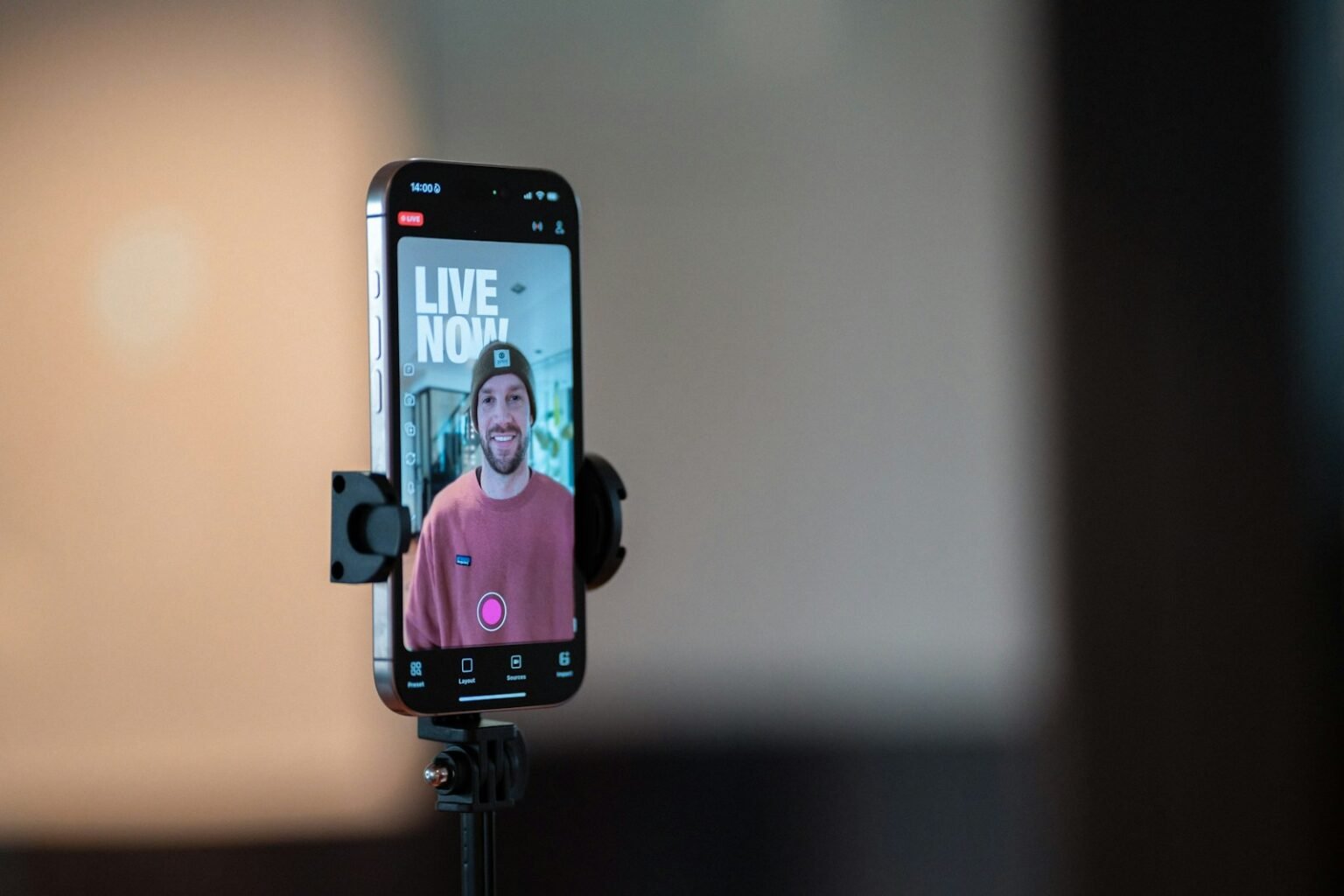
Twitch Dual Format sends a horizontal and a vertical version of the same broadcast, so phone viewers get a 9:16 picture instead of a letterboxed one. Twitch opened it to all streamers in June 2026, and streams using it are highlighted on the mobile app's front page for one week.
The mechanism sits inside OBS. Twitch's Dual Format help page describes it as a second canvas carried alongside your normal one through Enhanced Broadcasting, which is the feature that sends more than one video track from OBS in a single connection. Viewers on desktop see the landscape stream; viewers on the mobile app see the upright one.
The rollout came in Twitch's 17 June 2026 announcement of Dual Format and 2K streaming, which also set out the one-week front-page highlight for Dual Format channels. That promotion is the real reason to bother. A small channel rarely gets surfaced anywhere on Twitch, and a vertical streaming setup is one of the few levers that changes that; a week on the mobile front page is not a bonus but the main prize.
Without it, a phone held upright shows your landscape stream as a narrow band across the middle of the screen, with the facecam shrunk to the size of a stamp. Most viewers scrolling the mobile app don't turn the phone sideways for a channel they haven't met yet; they scroll past.
One caveat on quality options. Twitch says server-side transcoding, the extra resolution choices viewers pick from, applies to Partners and select Affiliates. Everyone else can still use Dual Format; viewers just get the quality you send.
Vertical streaming setup in OBS, step by step
A Twitch vertical streaming setup in OBS takes five steps and one free plugin, Aitum Vertical (version 1.6.4, released 21 May 2026). The plugin adds the vertical canvas; a single tick box called Enhanced Broadcasting then tells OBS to send it to Twitch alongside the landscape stream.
Five steps, in this order, taken from Twitch Help's Dual Format setup instructions:
- Install Aitum Vertical. It's free from the Aitum Vertical page on the OBS forum, needs OBS 29 or later, and runs on Windows, macOS and Linux. The source lives in the Vertical Canvas repository on GitHub.
- Turn on Enhanced Broadcasting. In OBS, open Settings, then Stream, and tick Enhanced Broadcasting under Multitrack Video.
- Set the additional canvas. In the same panel, choose Aitum Vertical as the Additional Canvas.
- Build 2–3 vertical scenes. Starting, live and break is enough. Leave the chat overlay out, because Twitch adds chat to the vertical view itself.
- Link your scenes. Pair each vertical scene with its horizontal twin so one scene switch changes both.
Step five is the one people skip. Without links, you switch the landscape scene to your break screen and your phone viewers keep watching an empty chair.
Before your first live Dual Format broadcast, click through every linked pair in the vertical preview. Check that the camera, the game capture and any alerts appear where you placed them, then run the whole set once in a private test.
If your base encoder settings aren't settled yet, sort those first with the OBS settings guide for Twitch and YouTube. Dual Format builds on a stream that already works; it won't rescue one that drops frames.
Designing a layout for a phone held upright
Think of a restaurant that does both dine-in and takeaway. The kitchen cooks one dish, but nobody tips a plated meal sideways into a box and hopes. The takeaway gets its own container, packed so the important parts arrive where the customer can see them.
Your vertical canvas is the takeaway box. Same game, same face, same audio; a different container with different rules. Squashing the landscape layout into 9:16 leaves a thin strip of gameplay and a lot of wasted screen, while a layout built for the box puts the camera and the action where a thumb-scrolling viewer actually looks.
For size, StreamScheme's Twitch vertical streaming guide (16 January 2026), a third-party site rather than Twitch, recommends 1080×1920 for best quality and 720×1280 for weaker PCs or slower connections. Treat that as common guidance, not an official spec.
For gaming, the layout that tends to work is stacked: camera in the top third, a cropped slice of the game underneath, and nothing on the bottom edge. For just-chatting or music streams, flip the balance and let the camera fill most of the frame, because the face is the content.
Four layout decisions.
| Decision | What to do | Worth it? |
|---|---|---|
| Canvas size | 1080×1920; drop to 720×1280 if your PC or upload struggles | Yes |
| Safe zones | Keep text and faces away from the top and bottom edges, where app buttons and chat sit | Yes |
| Chat overlay | Leave it out; Twitch draws chat on the vertical view | No |
| Scene count | Start with 2–3 linked scenes, add more once they behave | Usually |
The camera does more work upright than sideways, so framing matters. The streaming camera setup guide covers placement and framing that survive a tall crop.
Can your PC and connection carry a vertical streaming setup?
Twitch says most modern GPUs handle a vertical streaming setup: NVIDIA GTX 900 series or newer, AMD RX 5500 or newer, and Apple M1 or newer. Upload is the tighter limit. Enhanced Broadcasting can use up to 7.5 Mbps for 1080p, and a second canvas adds to that.
The graphics card list comes from Twitch's Dual Format requirements, and it's generous. Most people buying a gaming PC in the last decade clear it. The upload side is where the bill actually arrives.
Twitch's June 2026 Enhanced Broadcasting figures put 1080p at up to 7.5 Mbps and 1440p at up to 9 Mbps. Twitch doesn't publish a separate figure for the vertical track, so this guide won't invent one. What's certain is that two pictures travel up the same line, so you need more headroom than a single stream.
That Ofcom home broadband performance average is from 2023 and it's an average, so plenty of homes sit well below it, especially on copper lines. The streaming setup cost guide explains why upload decides more than your camera does.
The encoder matters too. Twitch's broadcasting guidelines note that x264 presets slower than Faster need six or more CPU cores, and that NVENC on RTX 20 or GTX 1660 cards typically beats x264 Fast. With two canvases to encode, a GPU encoder keeps the CPU free for the game.
Three checks before you go live.
- Measure upload at streaming time, in the evening, not at noon.
- Run a private test stream with both canvases on and watch OBS for dropped frames.
- Leave headroom. Streaming at your ceiling drops frames the moment someone else in the house starts an upload.
Pushing both canvases at 1080p on a weak line fails at peak hours; dropping the vertical canvas to 720×1280 keeps both streams alive.
YouTube vertical and TikTok LIVE from the same PC
Twitch is the only one of the three platforms with an official, documented route for sending both formats from OBS. YouTube and TikTok are less clear, and some of what circulates is second-hand. Here's the split between confirmed and reported.
On YouTube, Restream's help article on streaming to YouTube Shorts (July 2026) says a live stream set to 9:16 can appear in the Shorts feed, and that the vertical live feed shows only in the YouTube phone app. That's a third-party help centre describing YouTube's behaviour, not a YouTube page, so treat it as reported rather than guaranteed. YouTube's live encoder settings page (checked 26 September 2026) still lists landscape figures, such as 6 Mbps for 720p60, so budget upload for the vertical stream as you would for a landscape one.
On TikTok, access is the gate, not hardware. DemandSage's March 2026 guide to TikTok LIVE requirements, another third party, cites an 18+ age limit and around 1,000 followers, and notes the rules vary by region. Check your own account on TikTok LIVE Studio's apply for LIVE access page before building anything.
| Platform | Vertical route from a PC | Official source? | Verdict |
|---|---|---|---|
| Twitch | Dual Format via Aitum Vertical and Enhanced Broadcasting | Yes, Twitch Help | Yes |
| YouTube | 9:16 live stream, reported to appear in Shorts | Third party (Restream) | Usually |
| TikTok | LIVE Studio app, subject to account access | Third party for requirements | Marginal |
Sending the vertical canvas to YouTube or TikTok as well as Twitch needs extra outputs. Aitum sells that as a separate Aitum Multistream plugin, according to its OBS forum listing, and every extra destination adds another stream to your upload. Native multi-canvas support inside OBS without a plugin isn't confirmed, so this guide doesn't rely on it.
Start with Twitch, then add the other two
Three takeaways. Twitch Dual Format is the one documented route, and the one-week mobile front-page highlight makes it worth setting up first. Aitum Vertical plus one Enhanced Broadcasting tick box does the technical work; linked scenes stop your phone viewers watching an empty chair. Your upload, not your GPU, decides whether a second canvas holds up.
The next decision is whether to add YouTube or TikTok at all. Run a week on Twitch with both canvases, check your dropped frames, then add one destination at a time and test again. For the gear and settings that sit underneath all of it, the streaming setup guide brings the rest of the cluster together.
Prices are US retail, checked 25 September 2026, and will change. SetupFind has not bench-tested these products; figures come from manufacturer specifications and named sources, as set out in how SetupFind researches its recommendations. Some links may earn a commission at no extra cost to you (affiliate disclosure).
Straight answers
Can you stream horizontal and vertical at the same time on Twitch?
Yes. Twitch Dual Format, opened to all streamers in June 2026, sends a horizontal and a vertical stream from one OBS broadcast. You install the free Aitum Vertical plugin, tick Enhanced Broadcasting in OBS stream settings, and set Aitum Vertical as the additional canvas, according to Twitch Help.
Do I need Aitum Vertical, or can OBS do vertical on its own?
For Twitch Dual Format, Twitch Help's setup instructions name Aitum Vertical as the plugin to install. It's free, needs OBS 29 or later, and was at version 1.6.4 as of May 2026. Built-in vertical canvas support in OBS without a plugin isn't confirmed by Twitch's instructions.
How many followers do you need to go live on TikTok from a PC?
TikTok's requirements vary by region, and the figures that circulate come from third parties. DemandSage's March 2026 guide cites an 18+ age limit and around 1,000 followers. Check your own account on TikTok LIVE Studio's apply for LIVE access page, because that's what actually decides it.
What resolution should a vertical stream be?
A vertical stream is commonly set to 1080×1920, a 9:16 frame. StreamScheme's January 2026 Twitch vertical guide, a third-party source, recommends 1080×1920 for best quality and 720×1280 for weaker PCs or slower upload connections.
Will a vertical YouTube live stream show in the Shorts feed?
Reportedly, yes, if the stream is set to a 9:16 aspect ratio. Restream's help centre said in July 2026 that vertical live streams can appear in the Shorts feed and that the vertical live feed shows only in the YouTube phone app. That's a third-party description, not a YouTube page, so treat it as likely rather than guaranteed.